

Close Menu
    Facebook X (Twitter) Instagram
    Trending
    • The Best Black Friday Deals for Capture One Photographers
    • The New Capture One 16.7 – Three Amazing Use Cases
    • Capture One 16.7: Combine Masks, Better Retouching and More
    • Capture One 16.6.5 – Blemish Protection, Output Folder in Session Folders, Sony RX1R III
    • Top Free AI Tools for Photographers
    • Capture One AI Retouching – Everything You Need to Know
    • Capture One 16.5.6 – Grayscale Editing, iPhone DNG to EIPs, and other improvements
    • Capture One 16.5.5 Separate People Masks and Canon 16-28mm
    Facebook X (Twitter) Instagram
    Capture One Pro Tutorials, Styles, Courses, Books
    • Articles
    • Contacts
    • Styles
      • NEW! Street & Travel Styles
      • New! Layers Starter Kit
      • NextGen Landscape Styles
      • Adaptive Styles
      • NextGen Styles
      • Capture One Styles FREE
      • Ultimate Capture One Toolkit
      • Film Styles for Capture One
      • Creative Styles
      • Capture One Pro Color Grading Styles
    • TUTORIALS
      • NEW! Color Grading in Capture One
      • Capture One Expert Course
      • Capture One Hidden Features eBook
      • Capture One Best Practices
      • Capture One Shortcuts Cheat Sheet
      • Capture One Webinars
      • AI-Native Photographer Online Course
      • Practical AI Course
      • Capture One Script Generator
      • Capture One Assistant
      • AI-Powered Workflow for Photographers
    • Capture One Expert Course
    • FREE: 65 STYLES FOR CAPTURE ONE
    Capture One Pro Tutorials, Styles, Courses, Books
    Home»News»Capture One Aftershoot Wokrflow
    News

    Capture One Aftershoot Wokrflow

    Alexander SvetBy Alexander SvetNovember 18, 2024Updated:November 18, 2024
    Facebook Twitter Email LinkedIn WhatsApp Reddit Tumblr
    Share
    Facebook Twitter LinkedIn Email Telegram WhatsApp

    Aftershoot has been my go-to application for AI image culling for the past three years. I’ve culled over 83,000 images with Aftershoot and it has saved me a tremendous amount of time.
    Last year, Aftershoot introduced an AI image editing feature called Aftershoot Edits with support for Capture One. Now, they are going to release the new AI retouching tool so you can do all the culling, editing, and retouching in one application.

    Only through December 1, Aftershoot is offering a great Black Friday deal, and I’ve decided to share my Aftershoot lessons from the AI-powered Workflow for Photographers course for free!

    • You’ll learn how to use AI editing in Capture One and how to train your personal AI profile.
    • You’ll see how to combine Aftershoot Edits with Smart Adjustments for the fastest image editing workflow.
    • You’ll discover how to get the most out of the AI Culling in Aftershoot.

    Aftershoot Black Friday 2024
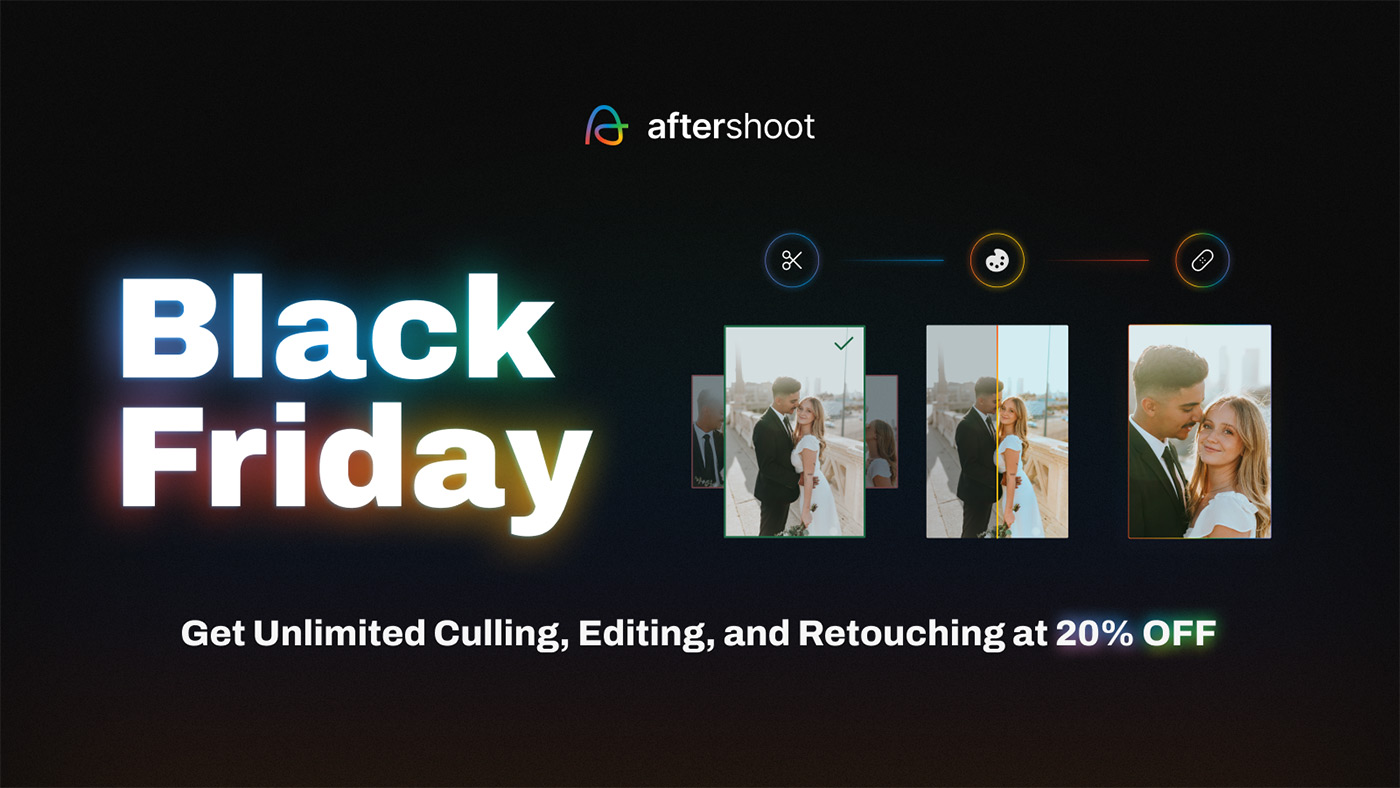
    Now through December 1, you can save 20% on all annual plans and get unlimited Culling, Editing, and secure upcoming AI Retouching.

    Pro subscribers will get one year of unlimited AI retouching at no extra charge, while Max subscribers will have it included as a permanent feature in their plan.

    As I said in my class, I love Aftershoot because you can use it as much as you need. Cull, edit, and soon retouch as many images as you want – no per-image fees!

    Capture One AI Editing – Aftershoot Edits Overview

    In this video, you will learn how to train your personal AI profile and what are the best practices of AI editing in Capture One. Also, you’ll see how to combine Aftershoot Edits with Smart Adjustments for the fastest image editing workflow.

    AI Image Culling

    Image culling is one of the most time-consuming steps of image editing and certainly the most boring one. I’m pretty sure you’re familiar with this frustrating feeling you get when it takes more time to pick the best shot than color grade it. Add the constant need to check image quality, and you get the recipe for a perfectly lifeless practice.

    The good news is that you can easily automate this process using AI. You’ll still need to pick the final images, but AI will handle everything else.
    When choosing AI image culling software, I’m looking for two essential features:
    First of all, it should take care of all the faulty shots. I don’t want to spend a lot of time evaluating focus quality or searching for closed eyes in my photos.
    Second, this app should speed up decision-making. Yes, the final choice is always on you because no one knows your images as well as you do. But AI should sort all the duplicates and similar images for you, making the final choice easier.
    For my AI-powered workflow, I’ve chosen the Aftershoot app, which offers a new approach to image culling, where a human makes final decisions only.

    Aftershoot Culling Workflow & Settings

    In this tutorial, we’ll cull a photo session to see the Aftershoot workflow in action. Also, you’ll learn how to adjust culling settings for optimal results and customize Aftershoot preferences for faster culling.

    Aftershoot Best Practices

    Now that you’re familiar with the Aftershoot workflow, let’s see how you can get the most out of AI culling.

    This post contains affiliate links and/or codes, so if you purchase a product through such a link or with such a code, I may receive a small commission at no extra cost to you.

    Share. Facebook Twitter Pinterest LinkedIn Tumblr Telegram Email
    Alexander Svet

    Alexander Svet – Professional photographer and photography instructor. Phase One Certified Professional and Capture One beta tester.

    Related Posts

    The Best Black Friday Deals for Capture One Photographers

    November 28, 2025

    Capture One 16.6.5 – Blemish Protection, Output Folder in Session Folders, Sony RX1R III

    September 4, 2025

    Capture One 16.5.5 Separate People Masks and Canon 16-28mm

    February 6, 2025

    Follow @AlexOnRAW

    Recent Posts
    • The Best Black Friday Deals for Capture One Photographers
    • The New Capture One 16.7 – Three Amazing Use Cases
    • Capture One 16.7: Combine Masks, Better Retouching and More
    • Capture One 16.6.5 – Blemish Protection, Output Folder in Session Folders, Sony RX1R III
    • Top Free AI Tools for Photographers
    Copyright 2024 Afterimages OÜ
    Reg. nr. 16195804
    Address: Estonia, Harju maakond, Tallinn, Kesklinna linnaosa, Luise tn 4-46, 10142
    Customer service email: [email protected]
    Privacy policy  Refund policy  EULA

    My Capture One Course
    Capture One Styles Free Download
    Capture One Film Styles
    Capture One Color Grading Styles
    Capture One Book
    Capture One Scritps
    Capture One AI Masking
    Capture One Black Friday

    Type above and press Enter to search. Press Esc to cancel.