


Capture One 16.7 is officially out this week, and I’ve been testing the beta version extensively all October. I think this is the most transformational update of Capture One yet, as the new layer features are truly revolutionary.
Today, I want to share three practical use cases showing how Capture One 16.7 changes real-life tasks:
- Relighting Subject Only
- Changing the Color of Clothes Quickly
- Adjusting Target Eye
Video Tutorial
Relighting Subject Only
Capture One 16.7 lets you combine masks in different ways, opening up plenty of applications for this. One of the things you can use it for is to relight just the subject in the image.
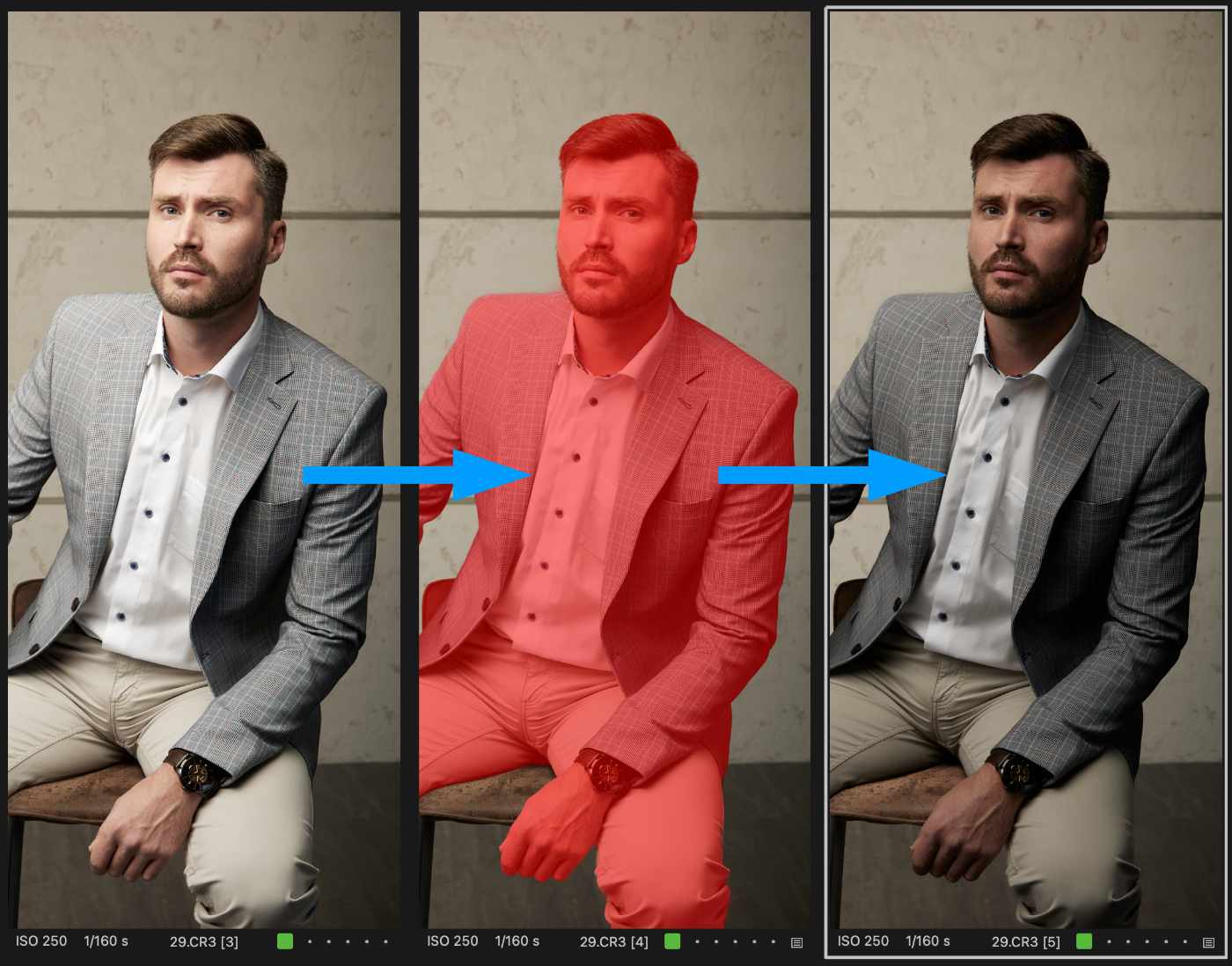
First, let’s mask the subject. This was also available in the old version of Capture One, but if we just darken the whole subject, it’ll look unnatural:
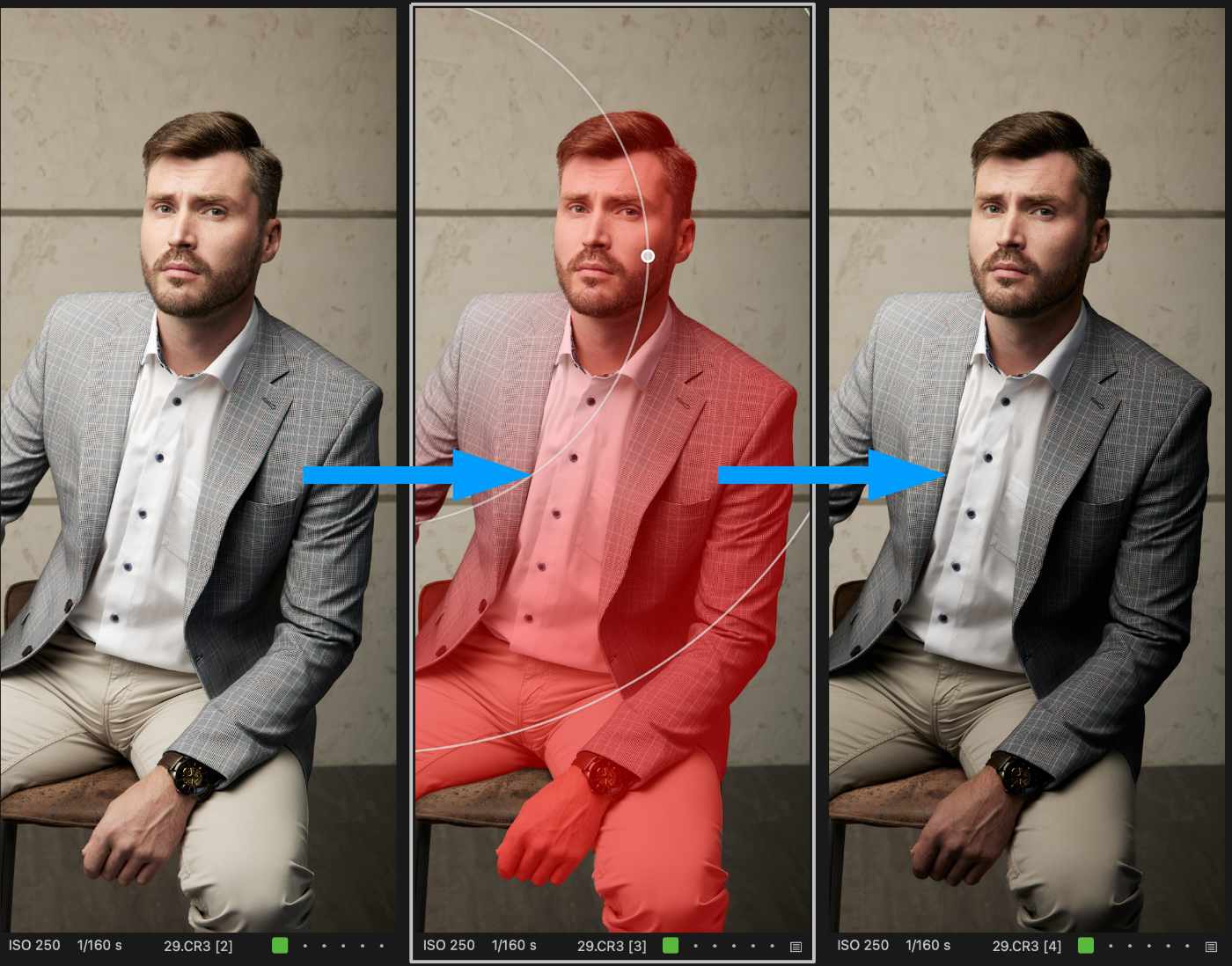
In Capture One 16.7, you can apply a radial gradient mask inside the subject mask to make the new lighting look completely realistic:
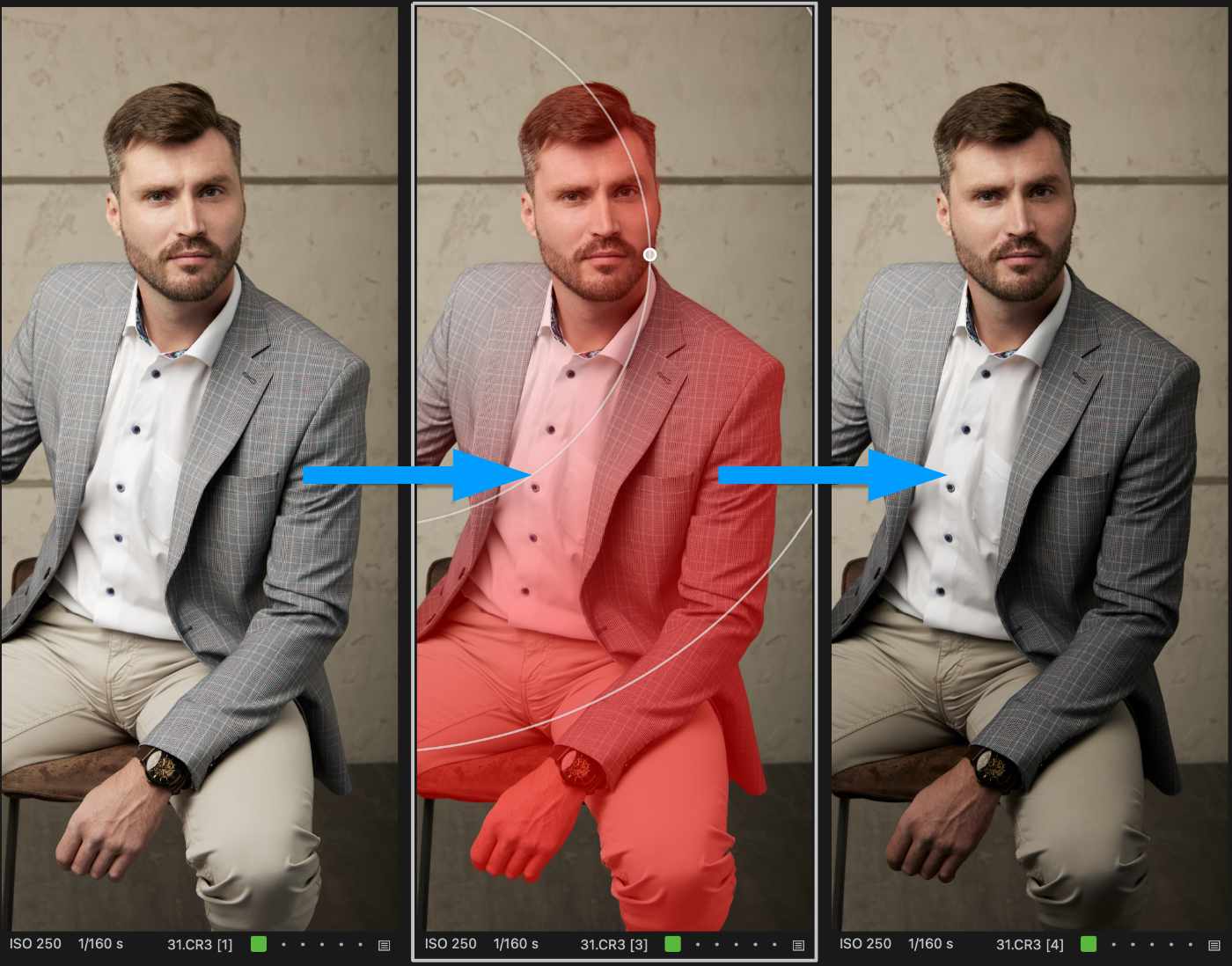
Best of all, you can easily copy this complex mask to other images, and it will adapt to each one in a unique way:
Before we move on to the next use case, just a friendly reminder:
I’ve just released my brand new set of classic Capture One styles:
Street & Travel Styles
And you can download five styles from this set for free! (Download link below ⬇️ )
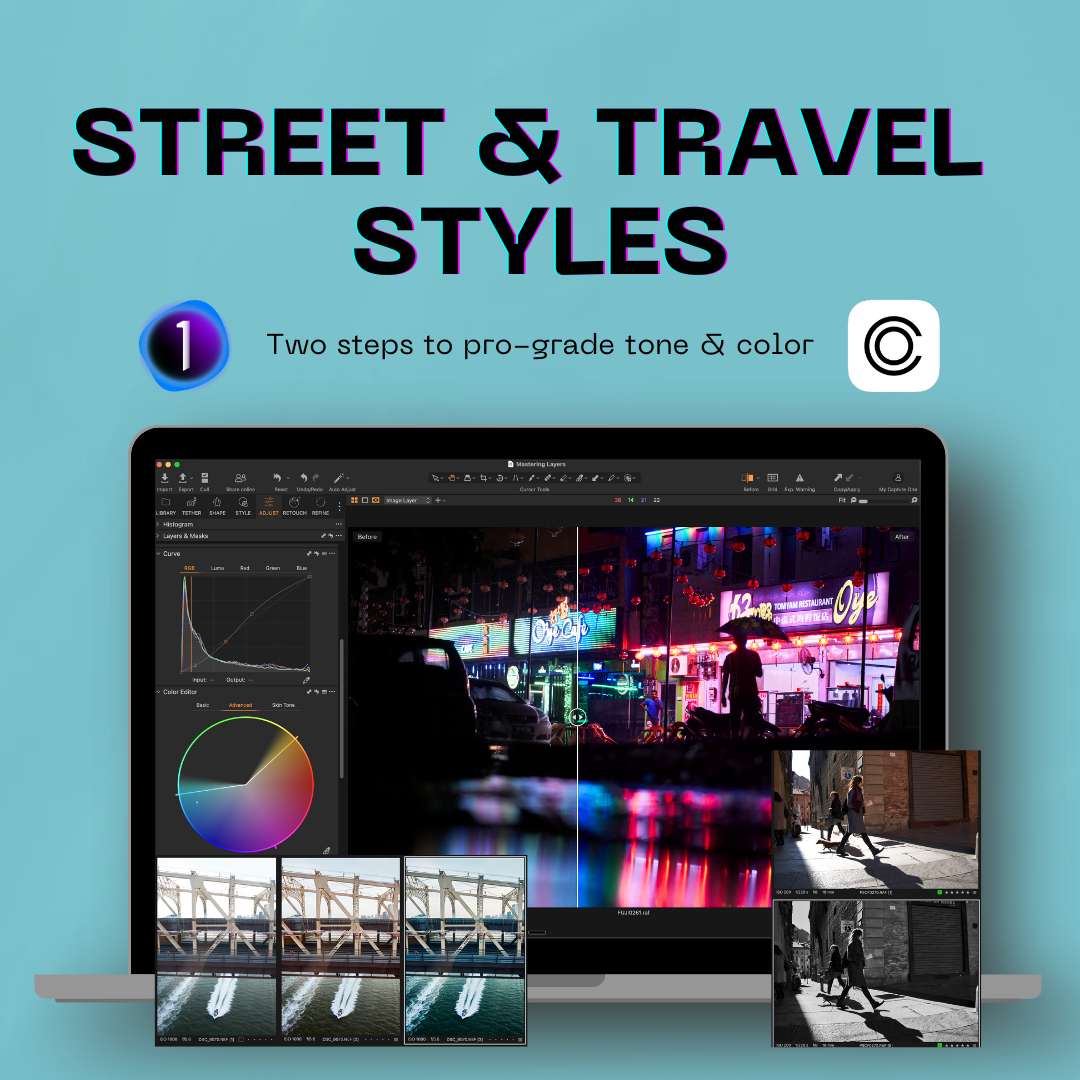
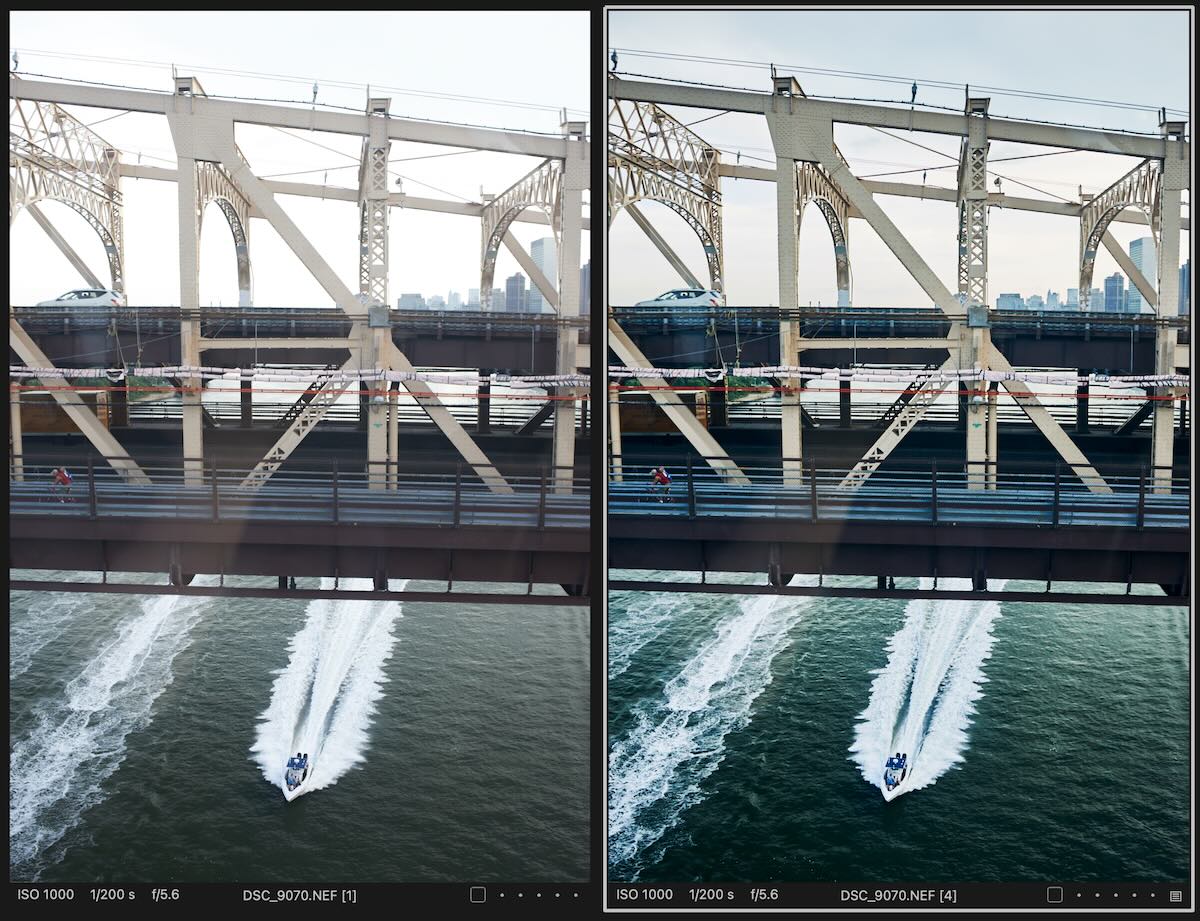
The Street and Travel Styles Set offers a brand new approach to working with styles in Capture One. It allows you to quickly browse 12 image tone styles to find the right contrast for your image, and then mix it with 12 color grading styles to achieve the perfect final look.
This new approach gives you the freedom to find the combination of adjustments that fits each image best.
I’ve made a short video showing how it works in practice:
Compatible with All Versions of Capture One
These styles use only the classic Capture One tools, such as Curves, Color Editor and Color Balance. Thus, they can be used with any version of Capture One.
DOWNLOAD STYLES
Launch Thank-You Offer
To say thanks for the launch, the first 20 customers get $10 off with code EARLY20

Changing the Color of Clothes Quickly
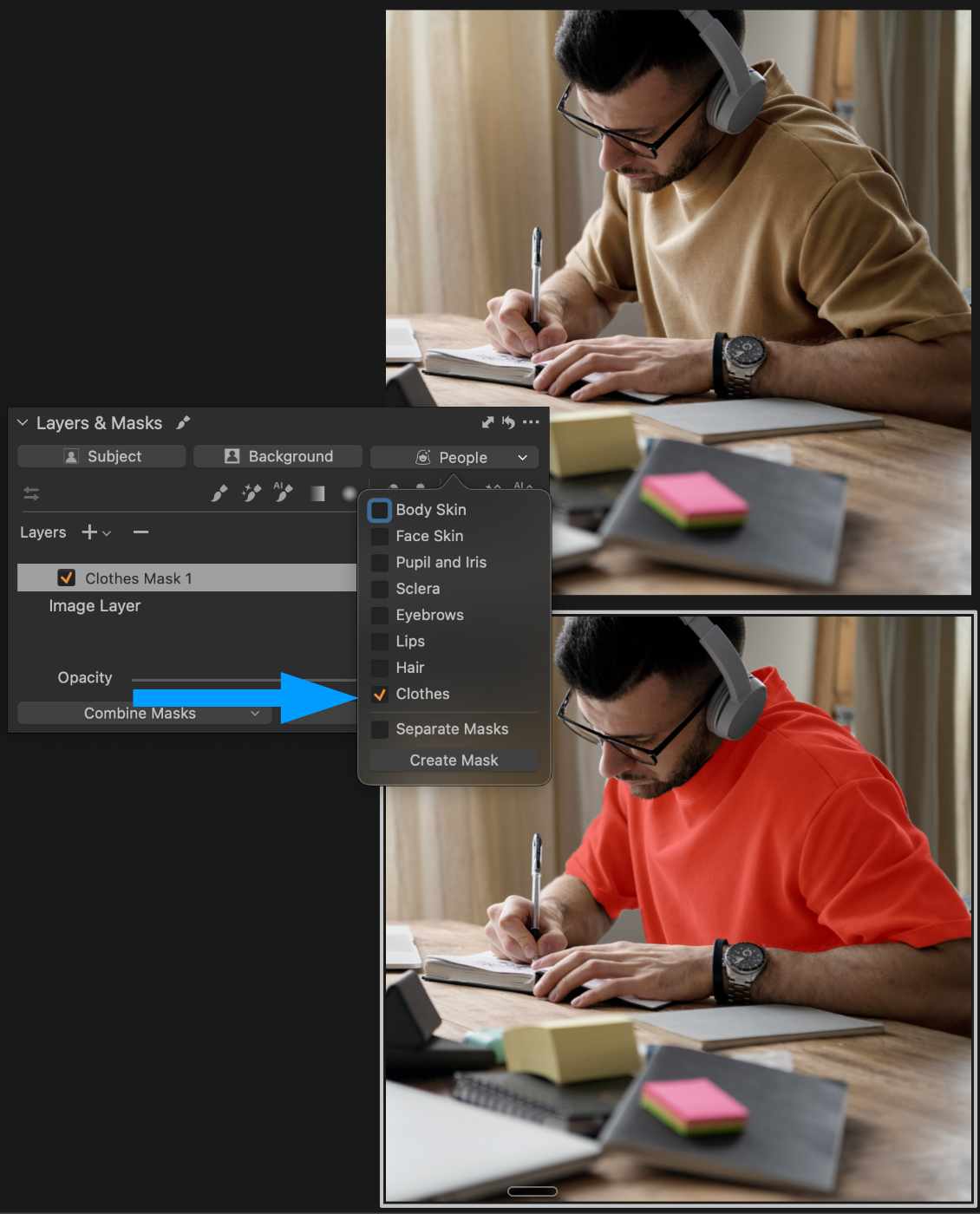
Another new feature of Capture One 16.7 is the ability to mask clothes, and you can combine this with the classic Capture One tricks, such as a complete color change using Skin Tone Color Editor.
First, create a clothes mask on your image:
Then, select the full color wheel in the Skin Tone Color Editor, set Hue Uniformity to 100, and move the point on the color wheel to choose the target color:
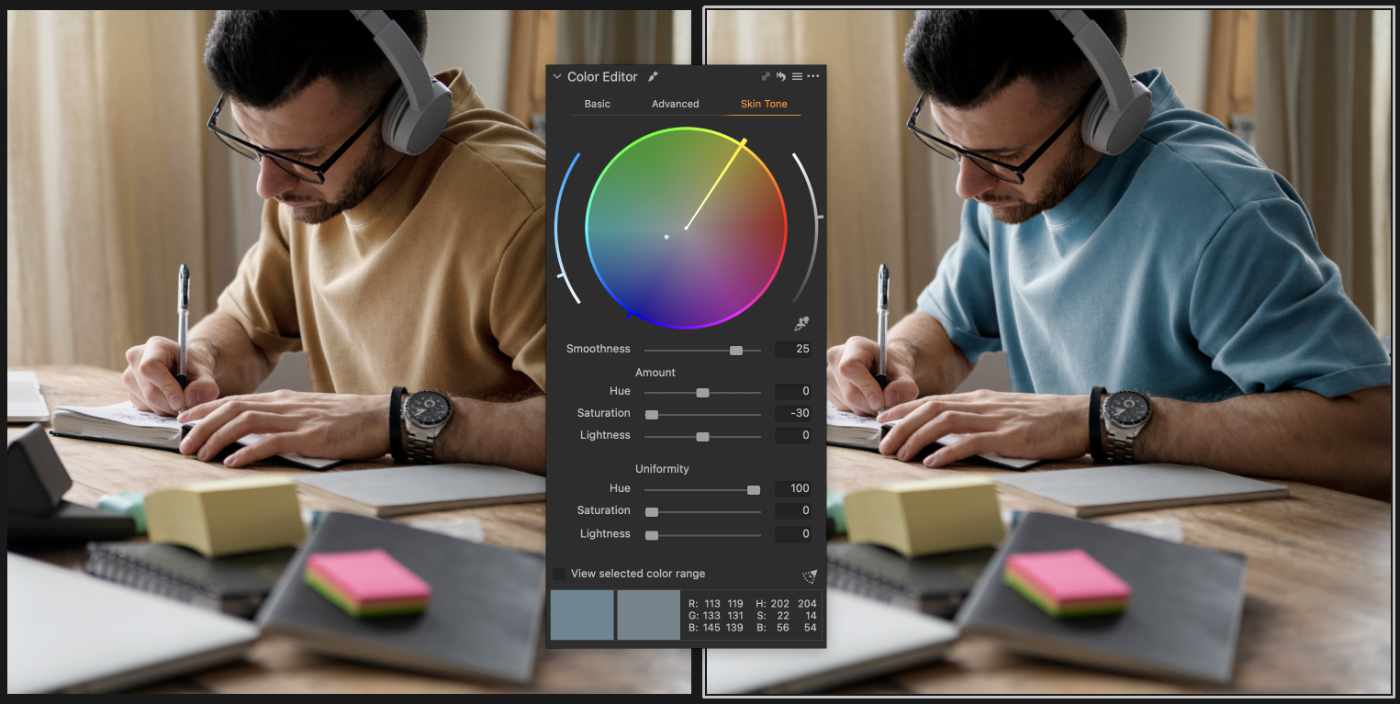
This way, you can easily change the color of any clothes in your image.
Adjusting Target Eye
Finally, you can now enhance just one eye, which is a task I do a lot in my work. For example, you don’t need to adjust both eyes on images like this, otherwise the right eye will look unnatural. However, the left eye would really benefit from the enhancement.
In Capture One 16.7, you can decide which eye, or both of them, to adjust.

I’m working on a deep-dive video on Capture One 16.7, so stay tuned!
Meanwhile, try five new free styles or get the full set with a $10 discount before the offer runs out!
