

Close Menu
    Facebook X (Twitter) Instagram
    Trending
    • The Best Black Friday Deals for Capture One Photographers
    • The New Capture One 16.7 – Three Amazing Use Cases
    • Capture One 16.7: Combine Masks, Better Retouching and More
    • Capture One 16.6.5 – Blemish Protection, Output Folder in Session Folders, Sony RX1R III
    • Top Free AI Tools for Photographers
    • Capture One AI Retouching – Everything You Need to Know
    • Capture One 16.5.6 – Grayscale Editing, iPhone DNG to EIPs, and other improvements
    • Capture One 16.5.5 Separate People Masks and Canon 16-28mm
    Facebook X (Twitter) Instagram
    Capture One Pro Tutorials, Styles, Courses, Books
    • Articles
    • Contacts
    • Styles
      • NEW! Street & Travel Styles
      • New! Layers Starter Kit
      • NextGen Landscape Styles
      • Adaptive Styles
      • NextGen Styles
      • Capture One Styles FREE
      • Ultimate Capture One Toolkit
      • Film Styles for Capture One
      • Creative Styles
      • Capture One Pro Color Grading Styles
    • TUTORIALS
      • NEW! Color Grading in Capture One
      • Capture One Expert Course
      • Capture One Hidden Features eBook
      • Capture One Best Practices
      • Capture One Shortcuts Cheat Sheet
      • Capture One Webinars
      • AI-Native Photographer Online Course
      • Practical AI Course
      • Capture One Script Generator
      • Capture One Assistant
      • AI-Powered Workflow for Photographers
    • Capture One Expert Course
    • FREE: 65 STYLES FOR CAPTURE ONE
    Capture One Pro Tutorials, Styles, Courses, Books
    Home»Articles»Quality Control in Capture One
    Articles

    Quality Control in Capture One

    Alexander SvetBy Alexander SvetOctober 3, 2019
    Facebook Twitter Email LinkedIn WhatsApp Reddit Tumblr
    Share
    Facebook Twitter LinkedIn Email Telegram WhatsApp

    Do you have a quality control stage in your Capture One workflow?
    That’s a crucial part of the image editing process. Quality control allows you to find and fix the mistakes you made during the editing.

    The idea is rather simple:
    No matter how experienced you are, your eyes get tired over longtime editing. Thus, sooner or later, you will make mistakes in image adjustments. The worst thing is that probably you would not even notice it. Because our vision quickly adapts to the current color on an image, you’re working with.

    Here is a typical case when this issue occurs:
    You’re working with images from some event. At the beginning of the editing, everything goes smooth, but as your eyes get tired, you’ll start making small mistakes in setting proper White Balance. Nothing critical at first glance. Just insignificant changes in White Balance from image to image. What is really dangerous here is that each next image is becoming even more corrupted, when compared to the previous photographs.

    In the middle of editing, you can’t notice that – your vision has already adapted to these spoiled variants. Thus, pictures at the end of the editing might have a significantly different color from the first images.
    The same thing is happening when you’re doing a batch editing of some travel photographs or developing images from an intensive portrait session.
    I see this issue repeating again and again with each new group of students at my photography course.

    How to avoid this?
    You can’t avoid it. This issue is built-in in our nature. But you can double-check yourself by implementing quality control into your workflow.

    Here are my rules of running a proper quality control:
    1. First of all, to decrease the number of mistakes, don’t forget to take short breaks during editing.
    I know, it’s tough to pause your processing when you’re in the “flow”. But your eyes are not in the flow no matter how you feel about it.

    2. After you finish the editing, take a 30-40 minutes break. Then scroll through your images once again to control editing quality. And again. It’s essential to navigate images pretty quickly to prevent adaptation of your vision. This way you’ll notice issues you have missed previously. If you’re new to image editing, I recommend you to repeat scrolling 3 or 4 times.

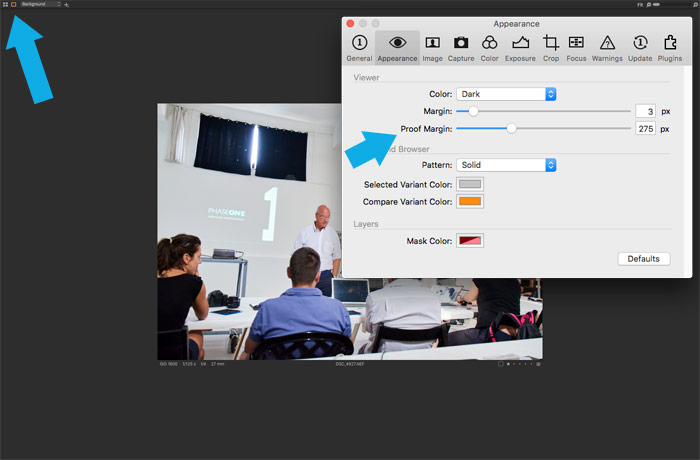
    3. My rule of thumb is to run the first quality control in the full-screen mode and the second quality control in preview-mode. Large and small image sizes allow you to notice composition issues and inappropriate details in your images.

    Here are two ways how to turn on preview-mode in Capture One:
    – Select some web-size recipe and turn on Recipe Proofing mode

    – Turn on Proof Margin mode (don’t forget to set the required margin in Capture One preferences).
    Share. Facebook Twitter Pinterest LinkedIn Tumblr Telegram Email
    Alexander Svet

    Alexander Svet – Professional photographer and photography instructor. Phase One Certified Professional and Capture One beta tester.

    Related Posts

    The New Capture One 16.7 – Three Amazing Use Cases

    November 7, 2025

    Capture One 16.7: Combine Masks, Better Retouching and More

    October 3, 2025

    Top Free AI Tools for Photographers

    June 20, 2025

    Follow @AlexOnRAW

    Recent Posts
    • The Best Black Friday Deals for Capture One Photographers
    • The New Capture One 16.7 – Three Amazing Use Cases
    • Capture One 16.7: Combine Masks, Better Retouching and More
    • Capture One 16.6.5 – Blemish Protection, Output Folder in Session Folders, Sony RX1R III
    • Top Free AI Tools for Photographers
    Copyright 2024 Afterimages OÜ
    Reg. nr. 16195804
    Address: Estonia, Harju maakond, Tallinn, Kesklinna linnaosa, Luise tn 4-46, 10142
    Customer service email: [email protected]
    Privacy policy  Refund policy  EULA

    My Capture One Course
    Capture One Styles Free Download
    Capture One Film Styles
    Capture One Color Grading Styles
    Capture One Book
    Capture One Scritps
    Capture One AI Masking
    Capture One Black Friday

    Type above and press Enter to search. Press Esc to cancel.